<?xml version="1.0" encoding="utf-8"?><feed xmlns="http://www.w3.org/2005/Atom" xml:lang="en"><generator uri="https://jekyllrb.com/" version="3.10.0">Jekyll</generator><link href="https://t-trat.github.io/feed.xml" rel="self" type="application/atom+xml" /><link href="https://t-trat.github.io/" rel="alternate" type="text/html" hreflang="en" /><updated>2026-05-12T02:44:10+00:00</updated><id>https://t-trat.github.io/feed.xml</id><title type="html">Ziyang Wang</title><subtitle>T-TrAt 的个人博客，分享一些技术笔记。</subtitle><author><name>Ziyang Wang</name><email>wangziyang06@126.com</email></author><entry><title type="html">Python 中的 texttable 模块：极简命令行表格输出</title><link href="https://t-trat.github.io/2026/05/10/texttable/" rel="alternate" type="text/html" title="Python 中的 texttable 模块：极简命令行表格输出" /><published>2026-05-10T11:00:00+00:00</published><updated>2026-05-10T11:00:00+00:00</updated><id>https://t-trat.github.io/2026/05/10/texttable</id><content type="html" xml:base="https://t-trat.github.io/2026/05/10/texttable/"><![CDATA[<p>Texttable 是 Python 的一款功能和使用都很简单的表格库。该库的功能只有一个——就是打印类似这样的表格：</p>

<div class="language-text highlighter-rouge"><div class="highlight"><pre class="highlight"><code>+--------+-----+-------+
|  Item  | Qty | Price |
+========+=====+=======+
| Apple  | 5   | 3.500 |
+--------+-----+-------+
| Banana | 3   | 2     |
+--------+-----+-------+
| Orange | 2   | 4.500 |
+--------+-----+-------+
</code></pre></div></div>

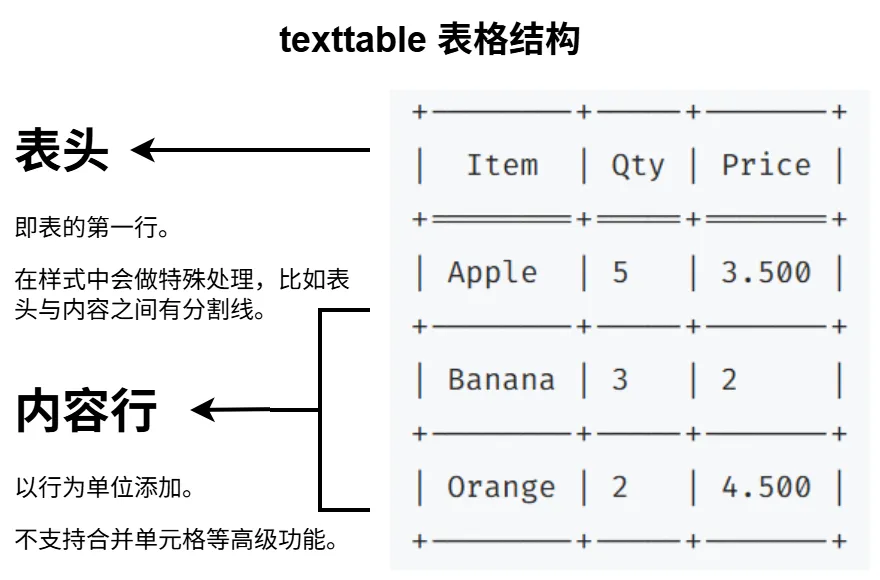
<p>表格结构如下：</p>

<p><img src="/imgs/2026-05-10-texttable/table-sample.webp" alt="texttable 表格示例" style="display: block; margin: 0 auto; width: 75%; border-radius: 0px; box-shadow: 0 4px 8px rgba(0,0,0,0.1)" /></p>

<p>用一个例子来介绍如何使用 texttable.</p>

<div class="language-python highlighter-rouge"><div class="highlight"><pre class="highlight"><code><span class="kn">import</span> <span class="nn">texttable</span>                          <span class="c1"># 引入 texttable 库
</span>
<span class="n">table</span> <span class="o">=</span> <span class="n">texttable</span><span class="p">.</span><span class="n">Texttable</span><span class="p">()</span>             <span class="c1"># 实例化一个 texttable 对象
</span><span class="n">table</span><span class="p">.</span><span class="n">add_rows</span><span class="p">([[</span><span class="s">"Item"</span><span class="p">,</span> <span class="s">"Qty"</span><span class="p">,</span> <span class="s">"Price"</span><span class="p">],</span> <span class="c1"># 使用 add_rows 函数写入表格
</span>               <span class="p">[</span><span class="s">"Apple"</span><span class="p">,</span> <span class="mi">5</span><span class="p">,</span> <span class="mf">3.5</span><span class="p">],</span>
               <span class="p">[</span><span class="s">"Banana"</span><span class="p">,</span> <span class="mi">3</span><span class="p">,</span> <span class="mf">2.0</span><span class="p">],</span>
               <span class="p">[</span><span class="s">"Orange"</span><span class="p">,</span> <span class="mi">2</span><span class="p">,</span> <span class="mf">4.5</span><span class="p">]])</span>

<span class="k">print</span><span class="p">(</span><span class="n">table</span><span class="p">.</span><span class="n">draw</span><span class="p">())</span>                       <span class="c1"># 打印表格
</span></code></pre></div></div>

<p>输出结果：</p>

<div class="language-text highlighter-rouge"><div class="highlight"><pre class="highlight"><code>+--------+-----+-------+
|  Item  | Qty | Price |
+========+=====+=======+
| Apple  | 5   | 3.500 |
+--------+-----+-------+
| Banana | 3   | 2     |
+--------+-----+-------+
| Orange | 2   | 4.500 |
+--------+-----+-------+
</code></pre></div></div>

<p>在 texttable 里，表格使用二维数组表示，以行的方式添加元素。添加行使用以下函数：</p>

<pre><code class="language-Python">
</code></pre>

<p>参考</p>

<p><a href="https://yaoweibin.cn/python%e4%b8%ad%e7%9a%84texttable%e6%a8%a1%e5%9d%97%e6%89%93%e9%80%a0%e4%bc%98%e9%9b%85%e7%9a%84%e5%91%bd%e4%bb%a4%e8%a1%8c%e8%a1%a8%e6%a0%bc%e8%be%93%e5%87%ba/">Python 中的 texttable 模块：打造优雅的命令行表格输出　作者　姚伟斌</a></p>]]></content><author><name>Ziyang Wang</name><email>wangziyang06@126.com</email></author><category term="Tutorial" /><summary type="html"><![CDATA[Texttable 是 Python 的一款功能和使用都很简单的表格库。该库的功能只有一个——就是打印类似这样的表格：]]></summary></entry><entry><title type="html">由浅入深理解 Matplotlib</title><link href="https://t-trat.github.io/2026/05/02/matplotlib/" rel="alternate" type="text/html" title="由浅入深理解 Matplotlib" /><published>2026-05-02T11:00:00+00:00</published><updated>2026-05-02T11:00:00+00:00</updated><id>https://t-trat.github.io/2026/05/02/matplotlib</id><content type="html" xml:base="https://t-trat.github.io/2026/05/02/matplotlib/"><![CDATA[<p>Matpoltlib 是常用的 python 可视化库，接触过数据分析读者想必都不陌生。</p>

<p>Matplotlib 的功能乍一看不太好记。本文就要尝试从统计图表开始逐步剖析，理解 Matplotlib 各功能的结构划分，由浅入深分析这个库的设计哲学。</p>

<p>我们可以先尝试分析统计图。翻阅资料会发现，实际上统计图的历史渊源还是很久远的。笔者之前刷到过一些有意思的古时候的统计表，比如这张古土耳其的饼状图。</p>

<p><img /> 图片</p>

<p>这些图有很强的构成感，十分吸引人，可见制图师的审美之重要性。</p>

<p>从绘制目的上分，可视化图共分这几类：</p>

<ul>
  <li>数据趋势 ：折线图、面积图。</li>
  <li>数据分布与构成 ：直方图、散点图（分布）；饼图、堆叠图（构成/占比）。</li>
  <li>空间地理 ：地图（如区域填充图、路线分布图等）</li>
</ul>

<p>每种图的表现形式都不一样。</p>

<p>从颜色上分，可视化图的颜色可由这些决定：</p>

<p>密度、大小。</p>

<p>然后视角调远，观察整个画面布局。图 1 那样的图表，在一张纸面上画了两个图（饼图和柱状图）。</p>

<p>最后沿袭一般的纸质排版的习惯，一张图标会有标题、正文、注解、角标等文字元素。也就是说制表会使用文字排版的那一套方法，不过是以图为主的。</p>

<p>如此梳理下来，如果我们要做一张统计表，大概就是在搭建这个结构：</p>

<p>【统计图框图】</p>

<p>若要在计算机上实现这种统计表信息的存储与绘制，我们不妨也就遵循这个结构构建。</p>

<p>【】</p>

<p>最后使用面向对象的思想封装，给一个图表加上操作方法。matplotlib 的雏形差不都就成了。</p>

<p>在 Matplotlib 的官方文档中有张比较完整的图的各个元素的速记图，我稍微仿照着汉化了一下：</p>

<p>【图片】</p>

<p>统计图所在的那一张纸就叫 figure，</p>

<p>二维坐标图的两个坐标轴分别为 x 轴和 y 轴，横为 x 竖为 y. 二者都可以设置小标题来解释坐标含义。每个轴都可以标记刻度，刻度上的数字作为文字排版也可以自定义。</p>

<p>为了便于直观样本点的数值区间，可以以大刻度和小刻度设置背景网格。</p>

<p>绘制的内容有曲线、折线和点，虽然样式不同但实际都只需要 xy 坐标组就能表示。</p>]]></content><author><name>Ziyang Wang</name><email>wangziyang06@126.com</email></author><category term="Matplotlib" /><category term="Tutorial" /><summary type="html"><![CDATA[Matpoltlib 是常用的 python 可视化库，接触过数据分析读者想必都不陌生。]]></summary></entry><entry><title type="html">ImageMagick 教程</title><link href="https://t-trat.github.io/2026/04/18/ImageMagick-tutorial/" rel="alternate" type="text/html" title="ImageMagick 教程" /><published>2026-04-18T11:00:00+00:00</published><updated>2026-05-01T17:08:25+00:00</updated><id>https://t-trat.github.io/2026/04/18/ImageMagick-tutorial</id><content type="html" xml:base="https://t-trat.github.io/2026/04/18/ImageMagick-tutorial/"><![CDATA[<div style="display: flex; flex-wrap: wrap; gap: 40px; margin-bottom: 20px; align-items: flex-start;">
  <div style="flex: 1 1 300px;">
    <img src="/imgs/2026-04-18-imagemagick-tutorial/imagemagick.webp" alt="ImageMagick图标" style="width: 100%; border-radius: 0px; box-shadow: 0 4px 8px rgba(0,0,0,0.1)" />
  </div>

  <div style="flex: 2 1 300px;">
    <p>
    ImageMagick 是一款开源且功能全面的图像格式转换命令行工具，替代了很多简单的 GUI 图片操作，易用性极高。<br />
    </p>
  </div>
</div>

<h2 id="下载方式">下载方式</h2>

<p>通过命令行下载：</p>

<p>Windows 用户</p>

<div class="language-bash highlighter-rouge"><div class="highlight"><pre class="highlight"><code><span class="c"># 1. 访问官网下载</span>
https://imagemagick.org/download/#windows&amp;gsc.tab<span class="o">=</span>0
<span class="c"># 2. 通过 powershell 下载</span>
winget <span class="nb">install </span>ImageMagick.ImageMagick
</code></pre></div></div>

<p>macOS 用户</p>

<div class="language-bash highlighter-rouge"><div class="highlight"><pre class="highlight"><code>brew <span class="nb">install </span>imagemagick
</code></pre></div></div>

<p>Linux 用户</p>

<div class="language-bash highlighter-rouge"><div class="highlight"><pre class="highlight"><code><span class="nb">sudo </span>apt update
<span class="nb">sudo </span>apt <span class="nb">install </span>imagemagick
</code></pre></div></div>

<p>或者直接通过官网下载：</p>

<p>GitHub 仓库：<a href="https://github.com/imagemagick/imagemagick">https://github.com/imagemagick/imagemagick</a></p>

<p>官网：<a href="https://github.com/imagemagick/imagemagick">https://github.com/imagemagick/imagemagick</a></p>

<h2 id="基本功能">基本功能</h2>

<p>作为一款</p>

<p>概览：</p>

<table>
  <thead>
    <tr>
      <th>功能名</th>
      <th>指令概览</th>
    </tr>
  </thead>
  <tbody>
    <tr>
      <td>查看图片参数</td>
      <td><code class="language-plaintext highlighter-rouge">magick identify xx.png</code></td>
    </tr>
    <tr>
      <td>图像格式转换</td>
      <td><code class="language-plaintext highlighter-rouge">magick xx.png xx.webp</code></td>
    </tr>
    <tr>
      <td>调整图像大小</td>
      <td><code class="language-plaintext highlighter-rouge">magick input.jpg -resize 800x600 output.jpg</code></td>
    </tr>
    <tr>
      <td>翻转和旋转</td>
      <td><code class="language-plaintext highlighter-rouge">magick input.jpg -rotate 90 output.jpg</code></td>
    </tr>
    <tr>
      <td>裁剪图像</td>
      <td><code class="language-plaintext highlighter-rouge">magick input.jpg -crop 400x400+0+0 output.jpg</code></td>
    </tr>
    <tr>
      <td>模糊</td>
      <td><code class="language-plaintext highlighter-rouge">magick tiger.jpg -blur 5X5 tiger2.jpg</code></td>
    </tr>
  </tbody>
</table>

<p>我将以我的头像为例介绍 ImageMagick 的基本功能。</p>

<p><img href="/imgs/2026-04-18-imagemagick-tutorial/base-sample.webp" /></p>

<p>该图片是 WebP 格式的。至于为什么是 WebP？因为该格式在现在浏览器解析性能很高，且文件体积比 PNG 小（你也不想因为网卡而加载不出这张 1080x1080 的图片吧）。</p>

<h3 id="查看图片参数">查看图片参数</h3>

<p>不需要 GUI，我们可以通过<code class="language-plaintext highlighter-rouge">magick identify</code>直接查看图片的详细参数。</p>

<div class="language-bash highlighter-rouge"><div class="highlight"><pre class="highlight"><code>magick identify trats-avatar.webp
</code></pre></div></div>

<div class="language-bash highlighter-rouge"><div class="highlight"><pre class="highlight"><code><span class="c"># 输出</span>
trats-avatar.webp WEBP 1080x1080 1080x1080+0+0 8-bit sRGB 122006B 0.001u 0:00.001
</code></pre></div></div>

<p>[这里画张框图]</p>

<h3 id="图像格式转换">图像格式转换</h3>

<p>该工具还以实现非常便捷的图像格式转换。接下来是操作方法：</p>

<div class="language-bash highlighter-rouge"><div class="highlight"><pre class="highlight"><code>magick trats-avatar.webp trats-avatar.png  <span class="c"># WebP 转 PNG 格式</span>
</code></pre></div></div>

<p>同理，我们也可以转换到其他格式：</p>

<div class="language-bash highlighter-rouge"><div class="highlight"><pre class="highlight"><code>magick trats-avatar.webp trats-avatar.JPG  <span class="c"># WebP 转 JPG 格式</span>
</code></pre></div></div>

<hr />

<p>进一步，我们还能批量处理图片</p>

<div class="language-bash highlighter-rouge"><div class="highlight"><pre class="highlight"><code><span class="c"># 将某一文件夹下的所有 .png 转换为 .jpg 格式</span>
<span class="k">for </span>ff <span class="k">in</span> <span class="k">*</span>.png<span class="p">;</span> <span class="k">do </span>magick <span class="nv">$ff</span> <span class="nv">$ff</span>.jpg<span class="p">;</span> <span class="k">done</span>

<span class="c"># convert all png in a dir to jpg</span>
<span class="c"># file name should not contain ttt. if so, change ttt to hhh or something random</span>
find <span class="nb">.</span> <span class="nt">-name</span> <span class="s2">"*png"</span> <span class="nt">-print0</span> | xargs <span class="nt">-0</span> <span class="nt">-L1</span> <span class="nt">-I</span> ttt magick ttt ttt.jpg
</code></pre></div></div>

<hr />

<h3 id="调整图像大小">调整图像大小</h3>

<p>将 input.jpg 调整为 180x180 的尺寸：</p>

<div class="language-bash highlighter-rouge"><div class="highlight"><pre class="highlight"><code>magick input.jpg <span class="nt">-resize</span> 800x600 output.jpg
</code></pre></div></div>

<p>也可以使用百分比调整尺寸：</p>

<div class="language-bash highlighter-rouge"><div class="highlight"><pre class="highlight"><code>magick input.jpg <span class="nt">-resize</span> 50% output.jpg
</code></pre></div></div>

<h3 id="翻转和旋转">翻转和旋转</h3>

<p>这里展示最常用的顺时针旋转 90°. -rotate 参数默认顺时针旋转。</p>

<div class="language-bash highlighter-rouge"><div class="highlight"><pre class="highlight"><code>magick input.jpg <span class="nt">-rotate</span> 90 output.jpg
</code></pre></div></div>

<p>数值可以为负，表示逆时针旋转。</p>

<div class="language-bash highlighter-rouge"><div class="highlight"><pre class="highlight"><code>magick input.jpg <span class="nt">-rotate</span> <span class="nt">-60</span> output.jpg
</code></pre></div></div>

<h3 id="裁剪图像">裁剪图像</h3>

<div class="language-bash highlighter-rouge"><div class="highlight"><pre class="highlight"><code>magick input.jpg <span class="nt">-crop</span> 400x400+0+0 output.jpg
</code></pre></div></div>

<p>400x400 表示裁剪后的尺寸，+0+0 表示裁切起点的偏移量。坐标系以左上角为原点，右向下向为正。</p>

<p>像调整图片大小一样，裁切单位也可以是百分比。对于裁 1/2 1/4 这种需求来说，百分比还是更方便的。</p>

<div class="language-bash highlighter-rouge"><div class="highlight"><pre class="highlight"><code>magick input.jpg <span class="nt">-crop</span> 50%x50%+0+0 output.jpg
</code></pre></div></div>

<h3 id="模糊">模糊</h3>

<div class="language-bash highlighter-rouge"><div class="highlight"><pre class="highlight"><code>magick tiger.jpg <span class="nt">-blur</span> 5X5 tiger2.jpg
</code></pre></div></div>

<hr />

<h2 id="高级功能">高级功能</h2>

<p>高级功能并不常用。比如实际上 ImageMagick 还适配移动端的操作系统，以及 ImageMagick 的所有指令都有很多参数可以调控。</p>

<p>具体内容详见<a href="https://imagemagick.org/">官网</a>里面列出的功能列表。</p>

<p><strong>-quality 参数</strong></p>

<p>转换指令中，参数 <code class="language-plaintext highlighter-rouge">-quality</code> 用于指定转换过程中保留图像细节的程度。<code class="language-plaintext highlighter-rouge">-quality</code> 的数值为 0-100%，缺省时默认为 92%. 也就是说默认的图像转换是有损的。</p>

<p><code class="language-plaintext highlighter-rouge">-quality</code> 的计算方法没有固定的标准，是一个参考数值，具体需要看这个工具是怎么实现的。*</p>

<div class="language-bash highlighter-rouge"><div class="highlight"><pre class="highlight"><code>magick xx.png <span class="nt">-quality</span> 90% xx.jpg  <span class="c"># 将 PNG 文件 xx 转换为 JPG 格式，转换质量为 90%</span>
</code></pre></div></div>

<h2 id="常见图片格式">常见图片格式</h2>

<table>
  <thead>
    <tr>
      <th>格式</th>
      <th>是否有损压缩</th>
      <th>色彩数</th>
      <th>是否支持动画</th>
    </tr>
  </thead>
  <tbody>
    <tr>
      <td>PNG</td>
      <td>无损</td>
      <td>真彩色</td>
      <td>不支持</td>
    </tr>
    <tr>
      <td>JPEG</td>
      <td>有损</td>
      <td>真彩色</td>
      <td>不支持</td>
    </tr>
    <tr>
      <td>WebP</td>
      <td>即支持有损也支持无损</td>
      <td>真彩色</td>
      <td>支持</td>
    </tr>
    <tr>
      <td>GIF</td>
      <td>有损</td>
      <td>256 色（8 位索引色）</td>
      <td>支持</td>
    </tr>
  </tbody>
</table>

<h2 id="参考">参考</h2>
<p>本文参考以下文章撰写：</p>

<p><a href="http://xahlee.info/img/imagemagic.html">http://xahlee.info/img/imagemagic.html【ImageMagick Tutorial】</a></p>

<p><a href="https://blog.eimoon.com/p/image-processing-with-imagemagick-guide/">https://blog.eimoon.com/p/image-processing-with-imagemagick-guide/<a></a></a></p>]]></content><author><name>Ziyang Wang</name><email>wangziyang06@126.com</email></author><category term="ImageMagick" /><category term="Tutorial" /><summary type="html"><![CDATA[ImageMagick 是一款开源且功能全面的图像处理命令行工具，替代了很多简单的 GUI 图片操作，易用性极高。]]></summary></entry><entry><title type="html">Git 的使用方法</title><link href="https://t-trat.github.io/2026/04/10/how-to-git/" rel="alternate" type="text/html" title="Git 的使用方法" /><published>2026-04-10T11:00:00+00:00</published><updated>2026-04-10T11:00:00+00:00</updated><id>https://t-trat.github.io/2026/04/10/how-to-git</id><content type="html" xml:base="https://t-trat.github.io/2026/04/10/how-to-git/"><![CDATA[<p>在项目开发时，我们会管理自己项目的变更。这样万一最新的修改有问题，或者项目临时换方向，我们都可以快速回滚到之前的特定版本。工程上管这个叫<strong>版本控制</strong>。</p>

<p>版本控制工具 Git 应运而生。该工具的开发哲学是。想必各位读者多少对 Git 有所耳闻，因为目前大部分主流 IDE 都集成了该工具，。而 GitHub 也是基于该工具的一款开源仓库托管平台。</p>

<p>Git 有两种使用途径。一是通过<strong>命令行</strong>、二是通过各种软件集成的 <strong>GUI</strong> 工具。</p>

<h2 id="如何-git-自己的分支">如何 git 自己的分支</h2>

<p>首先我们要找到以下两条信息：</p>

<ol>
  <li>仓库的 URL。固定的。</li>
  <li>分支名称。就是自己创建的分支的名称。</li>
</ol>

<p>知道了以上信息，我们就可以开始 git。</p>

<h2 id="操作流程">操作流程</h2>

<div class="language-bash highlighter-rouge"><div class="highlight"><pre class="highlight"><code><span class="c"># 一定要先cd至自己的项目路径！</span>
<span class="nb">cd</span> /path/to/your/project
</code></pre></div></div>

<p>第一次使用时，我们创建的是空的分支。我们需要用自己现有的项目文件直接覆盖里面的内容。</p>

<div class="language-bash highlighter-rouge"><div class="highlight"><pre class="highlight"><code><span class="c"># 你必须配置你的用户名和邮箱，这是git的规定，也为便于别人能看到SHit Code是谁提交的。</span>
<span class="c"># 邮箱部分只有填注册GitHub时使用的邮箱才能记录GitHub贡献值。贡献值就是长得像绿色马赛克瓷砖的东西。</span>
git config <span class="nt">--global</span> user.name <span class="s2">"你的名字"</span>
git config <span class="nt">--global</span> user.email <span class="s2">"你的GitHub注册邮箱"</span>

<span class="c"># 初始化git</span>
git init

<span class="c"># 把自己的文件添加到git并提交到本地，日志写清晰些</span>
git add <span class="nb">.</span> 
git commit <span class="nt">-m</span> <span class="s2">"提交日志"</span>

<span class="c"># 切换到自己的分支。把feature-branch替换为自己的分支的名称</span>
git checkout <span class="nt">-b</span> feature-branch

<span class="c"># 关联到远程仓库</span>
git remote add origin &lt;your-repo-url-here&gt;

<span class="c"># 强制推送到自己的分支。feature-branch依旧要被替换为自己的分支的名称</span>
git push <span class="nt">-u</span> origin feature-branch <span class="nt">-f</span>
</code></pre></div></div>

<p>有一种常见的项目开发模式，叫做<strong>分支开发模式</strong>。整个项目的开发流程就像一颗树，每个人员都在树的叶子上，负责自己的开发部分。开发到一定阶段，合并到 <code class="language-plaintext highlighter-rouge">dev</code> 分支，进一步地，会合并到 <code class="language-plaintext highlighter-rouge">main</code> 分支中，作为项目的最终版本。</p>

<p>在这种项目安排中，每个人都使用自己的专用的分支来开发，因此不太用担心新旧提交冲突的问题。但为了追求安全性还应遵循安全流程来操作。</p>

<p>在后续的每一次使用时，为了避免冲突，要先拉取代码，然后再修改代码，最后提交代码。</p>

<div class="language-bash highlighter-rouge"><div class="highlight"><pre class="highlight"><code><span class="c"># 切换到自己的分支。依旧替换feature-branch</span>
git checkout feature-branch

<span class="c"># 拉取远程代码并合并到本地</span>
git pull origin feature-branch

<span class="c"># 查看修改状态</span>
git status

<span class="c"># 将修改添加到暂存区</span>
git add <span class="nb">.</span>

<span class="c"># 提交到本地仓库。写清楚日志。</span>
git commit <span class="nt">-m</span> <span class="s2">"描述你这次修改了什么功能"</span>

<span class="c"># 推送到远程仓库，替换feature-branch</span>
git push origin feature-branch
</code></pre></div></div>]]></content><author><name>Ziyang Wang</name><email>wangziyang06@126.com</email></author><category term="Git" /><category term="Tutorial" /><summary type="html"><![CDATA[在项目开发时，我们会管理自己项目的变更。这样万一最新的修改有问题，或者项目临时换方向，我们都可以快速回滚到之前的特定版本。工程上管这个叫版本控制。]]></summary></entry><entry><title type="html">Testing MathJax</title><link href="https://t-trat.github.io/2020/10/02/testing-mathjax/" rel="alternate" type="text/html" title="Testing MathJax" /><published>2020-10-02T07:32:00+00:00</published><updated>2020-10-02T07:32:00+00:00</updated><id>https://t-trat.github.io/2020/10/02/testing-mathjax</id><content type="html" xml:base="https://t-trat.github.io/2020/10/02/testing-mathjax/"><![CDATA[<p>Not Pure Poole supports <a href="https://www.mathjax.org/">MathJax</a>. You can enable it on a page by setting <code class="language-plaintext highlighter-rouge">math: true</code> in the front matter.</p>

<p>An inline math: \(E=mc^2\).</p>

<p>A display math:</p>

\[i\hbar \frac{\partial \Psi}{\partial t} = -\frac{\hbar^2}{2m}
\frac{\partial^2 \Psi}{\partial x^2} + V \Psi\]]]></content><author><name>Ziyang Wang</name><email>wangziyang06@126.com</email></author><category term="mathjax" /><summary type="html"><![CDATA[Not Pure Poole supports MathJax. You can enable it on a page by setting math: true in the front matter.]]></summary></entry><entry><title type="html">Releasing Not Pure Poole v0.1.0</title><link href="https://t-trat.github.io/2020/10/01/releasing-not-pure-poole-v0-1-0/" rel="alternate" type="text/html" title="Releasing Not Pure Poole v0.1.0" /><published>2020-10-01T05:56:00+00:00</published><updated>2020-10-01T05:56:00+00:00</updated><id>https://t-trat.github.io/2020/10/01/releasing-not-pure-poole-v0-1-0</id><content type="html" xml:base="https://t-trat.github.io/2020/10/01/releasing-not-pure-poole-v0-1-0/"><![CDATA[<p>The Jekyll theme <strong>Not Pure Poole</strong> v0.1.0 was released!</p>

<p>Not Pure Poole is a simple, beautiful, and powerful Jekyll theme for blogs. It is built on <a href="https://github.com/poole/poole">Poole</a> and <a href="https://purecss.io/">Pure</a>.</p>

<p>For more information about this theme, you can read the <a href="https://github.com/vszhub/not-pure-poole/blob/master/README.md">README</a> file.</p>]]></content><author><name>Songzi Vong</name></author><category term="jekyll theme" /><category term="jekyll" /><summary type="html"><![CDATA[The Jekyll theme Not Pure Poole v0.1.0 was released!]]></summary></entry><entry><title type="html">Welcome to Not Pure Poole</title><link href="https://t-trat.github.io/2020/09/29/welcome-to-not-pure-poole/" rel="alternate" type="text/html" title="Welcome to Not Pure Poole" /><published>2020-09-29T15:18:00+00:00</published><updated>2020-09-30T17:08:25+00:00</updated><id>https://t-trat.github.io/2020/09/29/welcome-to-not-pure-poole</id><content type="html" xml:base="https://t-trat.github.io/2020/09/29/welcome-to-not-pure-poole/"><![CDATA[<p class="message">Welcome to <strong>Not Pure Poole</strong>! This is an example post to show the layout.</p>

<p>First, do you notice the TOC on the right side? Try to scroll down to read this post, you’ll find that the TOC is always sticky in the viewport.</p>

<p>Cum sociis natoque penatibus et magnis <a href="#">dis parturient montes</a>, nascetur ridiculus mus. <em>Aenean eu leo quam.</em> Pellentesque ornare sem lacinia quam venenatis vestibulum. Sed posuere consectetur est at lobortis. Cras mattis consectetur purus sit amet fermentum.</p>

<blockquote>
  <p>Curabitur blandit tempus porttitor. Nullam quis risus eget urna mollis ornare vel eu leo. Nullam id dolor id nibh ultricies vehicula ut id elit.</p>
</blockquote>

<p>Etiam porta <strong>sem malesuada magna</strong> mollis euismod. Cras mattis consectetur purus sit amet fermentum. Aenean lacinia bibendum nulla sed consectetur.</p>

<h2 id="inline-html-elements">Inline HTML elements</h2>

<p>HTML defines a long list of available inline tags, a complete list of which can be found on the <a href="https://developer.mozilla.org/en-US/docs/Web/HTML/Element">Mozilla Developer Network</a>.</p>

<ul>
  <li><strong>To bold text</strong>, use <code class="language-plaintext highlighter-rouge">&lt;strong&gt;</code>.</li>
  <li><em>To italicize text</em>, use <code class="language-plaintext highlighter-rouge">&lt;em&gt;</code>.</li>
  <li><mark>To highlight</mark>, use <code class="language-plaintext highlighter-rouge">&lt;mark&gt;</code>.</li>
  <li>Abbreviations, like <abbr title="HyperText Markup Langage">HTML</abbr> should use <code class="language-plaintext highlighter-rouge">&lt;abbr&gt;</code>, with an optional <code class="language-plaintext highlighter-rouge">title</code> attribute for the full phrase.</li>
  <li>Citations, like <cite>— Mark Otto</cite>, should use <code class="language-plaintext highlighter-rouge">&lt;cite&gt;</code>.</li>
  <li><del>Deleted</del> text should use <code class="language-plaintext highlighter-rouge">&lt;del&gt;</code> and <ins>inserted</ins> text should use <code class="language-plaintext highlighter-rouge">&lt;ins&gt;</code>.</li>
  <li>Superscript <sup>text</sup> uses <code class="language-plaintext highlighter-rouge">&lt;sup&gt;</code> and subscript <sub>text</sub> uses <code class="language-plaintext highlighter-rouge">&lt;sub&gt;</code>.</li>
</ul>

<p>Most of these elements are styled by browsers with few modifications on our part.</p>

<h2 id="footnotes">Footnotes</h2>

<p>Footnotes are supported as part of the Markdown syntax. Here’s one in action. Clicking this number<sup id="fnref:fn-sample_footnote" role="doc-noteref"><a href="#fn:fn-sample_footnote" class="footnote" rel="footnote">1</a></sup> will lead you to a footnote. The syntax looks like:</p>

<figure class="highlight"><pre><code class="language-text" data-lang="text">Clicking this number[^fn-sample_footnote]</code></pre></figure>

<p>Each footnote needs the <code class="language-plaintext highlighter-rouge">^fn-</code> prefix and a unique ID to be referenced for the footnoted content. The syntax for that list looks something like this:</p>

<figure class="highlight"><pre><code class="language-text" data-lang="text">[^fn-sample_footnote]: Handy! Now click the return link to go back.</code></pre></figure>

<p>You can place the footnoted content wherever you like. Markdown parsers should properly place it at the bottom of the post.</p>

<h2 id="heading">Heading</h2>

<p>Vivamus sagittis lacus vel augue rutrum faucibus dolor auctor. Duis mollis, est non commodo luctus, nisi erat porttitor ligula, eget lacinia odio sem nec elit. Morbi leo risus, porta ac consectetur ac, vestibulum at eros.</p>

<h3 id="code">Code</h3>

<p>Inline code is available with the <code class="language-plaintext highlighter-rouge">&lt;code&gt;</code> element. Snippets of multiple lines of code are supported through Rouge. Longer lines will automatically scroll horizontally when needed. You may also use code fencing (triple backticks) for rendering code.</p>

<figure class="highlight"><pre><code class="language-js" data-lang="js"><span class="c1">// Example can be run directly in your JavaScript console</span>

<span class="c1">// Create a function that takes two arguments and returns the sum of those arguments</span>
<span class="kd">var</span> <span class="nx">adder</span> <span class="o">=</span> <span class="k">new</span> <span class="nb">Function</span><span class="p">(</span><span class="dl">"</span><span class="s2">a</span><span class="dl">"</span><span class="p">,</span> <span class="dl">"</span><span class="s2">b</span><span class="dl">"</span><span class="p">,</span> <span class="dl">"</span><span class="s2">return a + b</span><span class="dl">"</span><span class="p">);</span>

<span class="c1">// Call the function</span>
<span class="nx">adder</span><span class="p">(</span><span class="mi">2</span><span class="p">,</span> <span class="mi">6</span><span class="p">);</span>
<span class="c1">// &gt; 8</span></code></pre></figure>

<p>You may also optionally show code snippets with line numbers. Add <code class="language-plaintext highlighter-rouge">linenos</code> to the Rouge tags.</p>

<figure class="highlight"><pre><code class="language-js" data-lang="js"><table class="rouge-table"><tbody><tr><td class="gutter gl"><pre class="lineno">1
2
3
4
5
6
7
8
</pre></td><td class="code"><pre><span class="c1">// Example can be run directly in your JavaScript console</span>

<span class="c1">// Create a function that takes two arguments and returns the sum of those arguments</span>
<span class="kd">var</span> <span class="nx">adder</span> <span class="o">=</span> <span class="k">new</span> <span class="nb">Function</span><span class="p">(</span><span class="dl">"</span><span class="s2">a</span><span class="dl">"</span><span class="p">,</span> <span class="dl">"</span><span class="s2">b</span><span class="dl">"</span><span class="p">,</span> <span class="dl">"</span><span class="s2">return a + b</span><span class="dl">"</span><span class="p">);</span>

<span class="c1">// Call the function</span>
<span class="nx">adder</span><span class="p">(</span><span class="mi">2</span><span class="p">,</span> <span class="mi">6</span><span class="p">);</span>
<span class="c1">// &gt; 8</span>
</pre></td></tr></tbody></table></code></pre></figure>

<p>Aenean lacinia bibendum nulla sed consectetur. Etiam porta sem malesuada magna mollis euismod. Fusce dapibus, tellus ac cursus commodo, tortor mauris condimentum nibh, ut fermentum massa.</p>

<h3 id="lists">Lists</h3>

<p>Cum sociis natoque penatibus et magnis dis parturient montes, nascetur ridiculus mus. Aenean lacinia bibendum nulla sed consectetur. Etiam porta sem malesuada magna mollis euismod. Fusce dapibus, tellus ac cursus commodo, tortor mauris condimentum nibh, ut fermentum massa justo sit amet risus.</p>

<ul>
  <li>Praesent commodo cursus magna, vel scelerisque nisl consectetur et.</li>
  <li>Donec id elit non mi porta gravida at eget metus.</li>
  <li>Nulla vitae elit libero, a pharetra augue.</li>
</ul>

<p>Donec ullamcorper nulla non metus auctor fringilla. Nulla vitae elit libero, a pharetra augue.</p>

<ol>
  <li>Vestibulum id ligula porta felis euismod semper.</li>
  <li>Cum sociis natoque penatibus et magnis dis parturient montes, nascetur ridiculus mus.</li>
  <li>Maecenas sed diam eget risus varius blandit sit amet non magna.</li>
</ol>

<p>Cras mattis consectetur purus sit amet fermentum. Sed posuere consectetur est at lobortis.</p>

<dl>
  <dt>HyperText Markup Language (HTML)</dt>
  <dd>The language used to describe and define the content of a Web page</dd>

  <dt>Cascading Style Sheets (CSS)</dt>
  <dd>Used to describe the appearance of Web content</dd>

  <dt>JavaScript (JS)</dt>
  <dd>The programming language used to build advanced Web sites and applications</dd>
</dl>

<p>Integer posuere erat a ante venenatis dapibus posuere velit aliquet. Morbi leo risus, porta ac consectetur ac, vestibulum at eros. Nullam quis risus eget urna mollis ornare vel eu leo.</p>

<h3 id="images">Images</h3>

<p>Quisque consequat sapien eget quam rhoncus, sit amet laoreet diam tempus. Aliquam aliquam metus erat, a pulvinar turpis suscipit at.</p>

<p><img src="http://placehold.it/800x400" alt="placeholder" title="Large example image" />
<img src="http://placehold.it/400x200" alt="placeholder" title="Medium example image" />
<img src="http://placehold.it/200x200" alt="placeholder" title="Small example image" /></p>

<p>Align to the center by adding <code class="language-plaintext highlighter-rouge">class="align-center"</code>:</p>

<p><img src="http://placehold.it/400x200" alt="placeholder" title="Medium example image" class="align-center" /></p>

<h3 id="tables">Tables</h3>

<p>Aenean lacinia bibendum nulla sed consectetur. Lorem ipsum dolor sit amet, consectetur adipiscing elit.</p>

<table>
  <thead>
    <tr>
      <th>Name</th>
      <th>Upvotes</th>
      <th>Downvotes</th>
    </tr>
  </thead>
  <tfoot>
    <tr>
      <td>Totals</td>
      <td>21</td>
      <td>23</td>
    </tr>
  </tfoot>
  <tbody>
    <tr>
      <td>Alice</td>
      <td>10</td>
      <td>11</td>
    </tr>
    <tr>
      <td>Bob</td>
      <td>4</td>
      <td>3</td>
    </tr>
    <tr>
      <td>Charlie</td>
      <td>7</td>
      <td>9</td>
    </tr>
  </tbody>
</table>

<p>Nullam id dolor id nibh ultricies vehicula ut id elit. Sed posuere consectetur est at lobortis. Nullam quis risus eget urna mollis ornare vel eu leo.</p>

<hr />

<p>Want to see something else added? <a href="https://github.com/vszhub/not-pure-poole/issues/new">Open an issue.</a></p>

<div class="footnotes" role="doc-endnotes">
  <ol>
    <li id="fn:fn-sample_footnote" role="doc-endnote">
      <p>Handy! Now click the return link to go back. <a href="#fnref:fn-sample_footnote" class="reversefootnote" role="doc-backlink">&#8617;</a></p>
    </li>
  </ol>
</div>]]></content><author><name>Ziyang Wang</name><email>wangziyang06@126.com</email></author><category term="jekyll theme" /><category term="jekyll" /><category term="tutorial" /><summary type="html"><![CDATA[Welcome to Not Pure Poole! This is an example post to show the layout.]]></summary></entry></feed>